

Upload a creative
Go to Creatives → Upload creative and drop in your file, or click to browse. Uploads run in the background and show progress as they go. Supported formats include:- Video — the most common creative for ad and hook testing.
- Image — static ads, key art, packaging, and stills.
- Messaging — headlines, captions, and body copy. You can upload a document or type copy directly in the test builder.
Large video files are processed after upload so they play back smoothly in the app. A creative is ready to test once processing completes.
Use a creative in a test
When you build a test or focus group, pick the format and attach a creative to each variant. To compare options, add up to four variants (A, B, C, D) and attach a different creative or message to each. For copy tests, choose the Messaging format and paste the headline, caption, or body text for each variant — no upload required.Manage creatives
Open Creatives to see every asset in the workspace, preview it, and see where it’s been used. Reusing a creative across tests keeps your results comparable and your library tidy.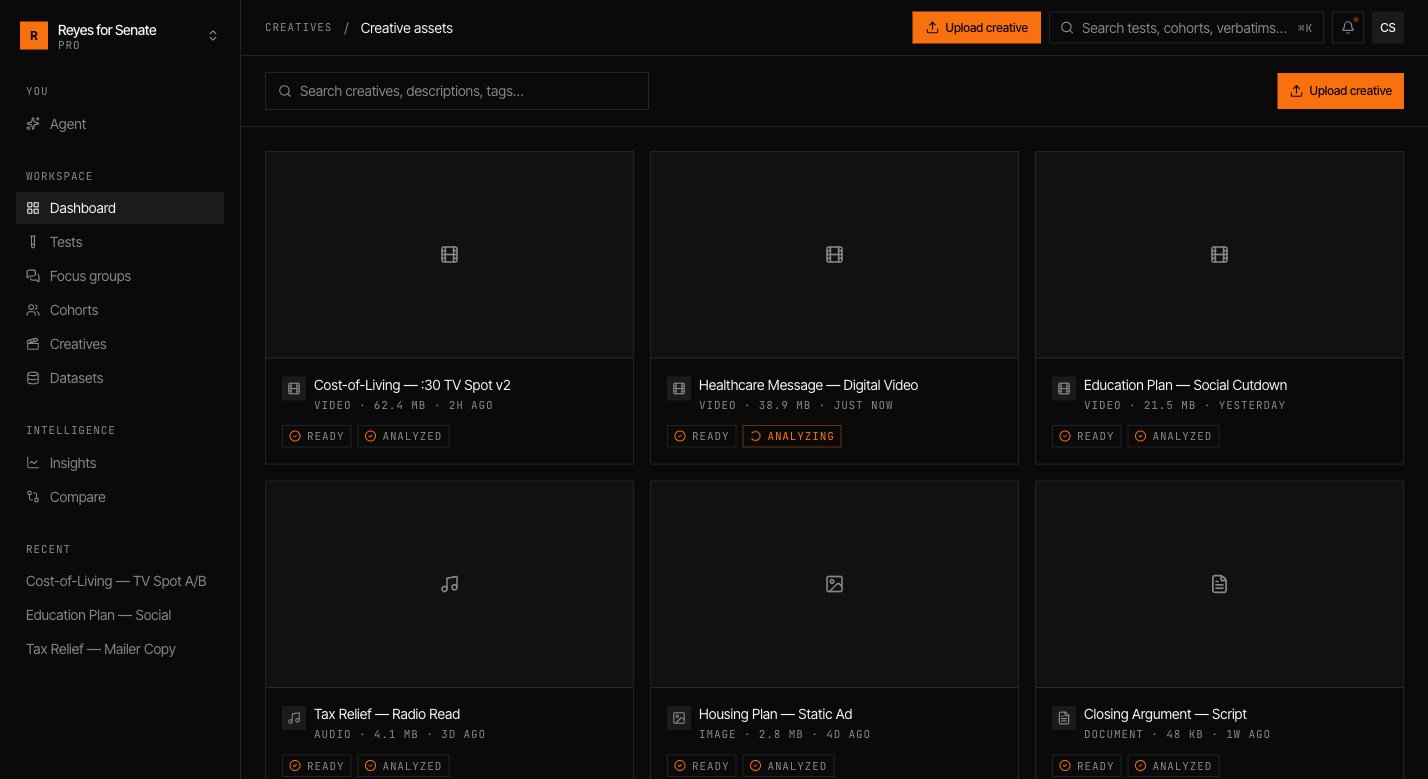
Next: run a test
Put a creative in front of a cohort and read the reaction.