

n) so you always know how many personas stand behind a result.
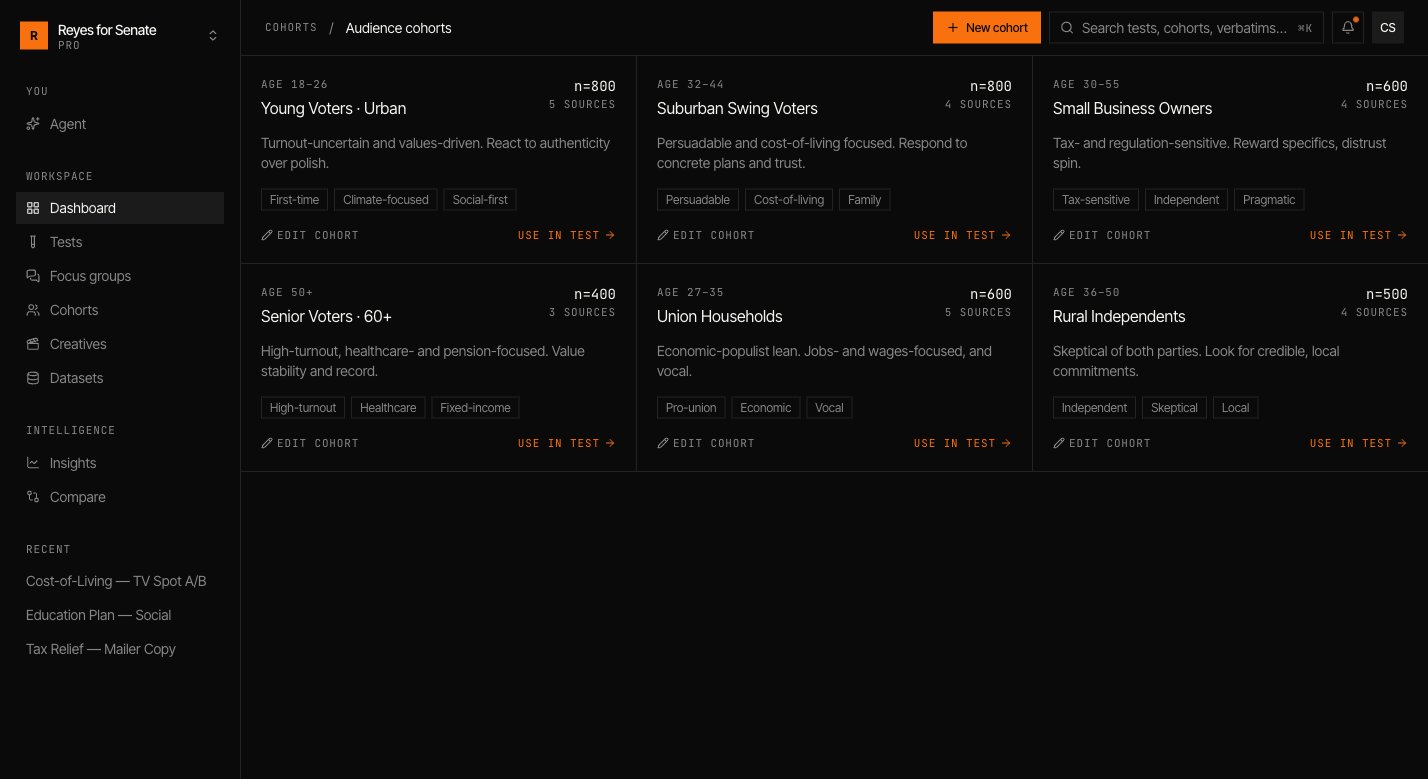
Create a cohort
Go to Cohorts → New cohort and work down the builder. A live preview on the right shows the sample size and an example respondent as you refine.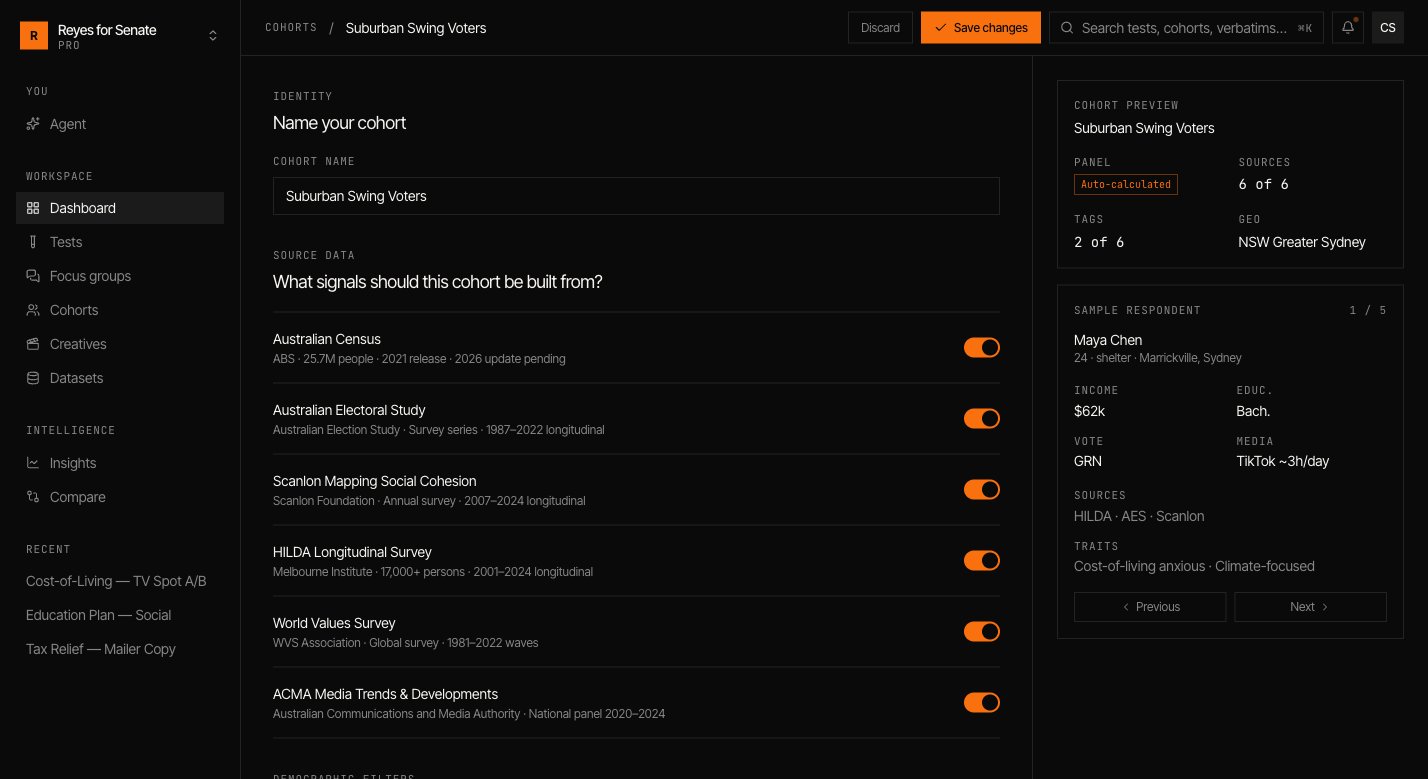
Choose the source data
Under Source data, toggle which datasets this cohort is built from. Turning a source off removes its signal from the personas. See Datasets.
Apply demographic filters
Narrow the sample by age range, gender, state or territory, income, household, and education. Leave a filter as Any to keep it open.
Add psychographic tags
Select data-backed tags — attitudes and dispositions such as
Cost-of-living anxious or Climate-focused. Tags are grounded in the source data, not guessed.Sample size
As you filter, Simulant shows the available sample size (n). When you run a test, you choose how many personas to draw from the cohort; the panel is capped at the cohort’s total. Larger samples tighten the confidence of quantitative measures; smaller samples run faster.
Editing and reusing cohorts
Open any cohort from Cohorts to adjust its sources, filters, or tags and Save changes. Cohorts are reusable across tests and focus groups, which keeps results comparable — running two creatives against the same cohort is a clean like-for-like read.Next
Add a creative
Upload the asset you want this cohort to react to.
Run a test
Put your cohort to work.