> ## Documentation Index
> Fetch the complete documentation index at: https://docs.simulant.tech/llms.txt
> Use this file to discover all available pages before exploring further.
# Quickstart
> Create a workspace, build a cohort, and run your first test in under an hour.
This guide takes you from an empty workspace to your first test result. It should take about an hour, most of which is the simulation running.
## Prerequisites
* Access to Simulant at [app.simulant.tech](https://app.simulant.tech). If you don't have an account, [book a demo](https://simulant.tech/contact?intent=demo) or accept a workspace invite.
* A creative to test — a video, an image, or a block of copy. You can also start with messaging typed directly into the app.
## Set up your workspace
Sign up at [app.simulant.tech/signup](https://app.simulant.tech/signup) with your work email, then enter the 6-digit code we send you. If you were invited to a workspace, open the invite link instead and accept.
Tell us your name, role, organization, and what you plan to use Simulant for. This creates your first **workspace** — the shared space where your team's cohorts, tests, and data live.
## Run your first test
Simulant ships with a **public library** of grounding datasets, so you can start immediately. To add your own signal, go to **Datasets → Add dataset**. See [Datasets](/data/datasets).
Go to **Cohorts → New cohort**. Name it, choose the source data it's built from, then narrow it with demographic filters and psychographic tags. Simulant shows the sample size (`n`) as you refine. See [Build a cohort](/guides/cohorts).
Go to **Creatives → Upload creative** and drop in your video or image. For copy tests, you can skip this and type the messaging directly into the test builder. See [Creatives](/guides/creatives).
Go to **Tests → New test**. Give it a name and a **hypothesis**, choose the format (Video, Image, or Messaging), add your variants, pick the cohort, and select the metrics and questions you want answered. See [Run a test](/guides/tests).
Click **Run test**. Simulant questions the population and assembles the results. You'll get a notification when the run finishes.
Open the test to see headline metrics (recall, sentiment, intent, clarity), sentiment by segment, and tabs for **Verbatims**, **Themes**, and **Recommendations**. Use **Export** or **Share** to bring others in.
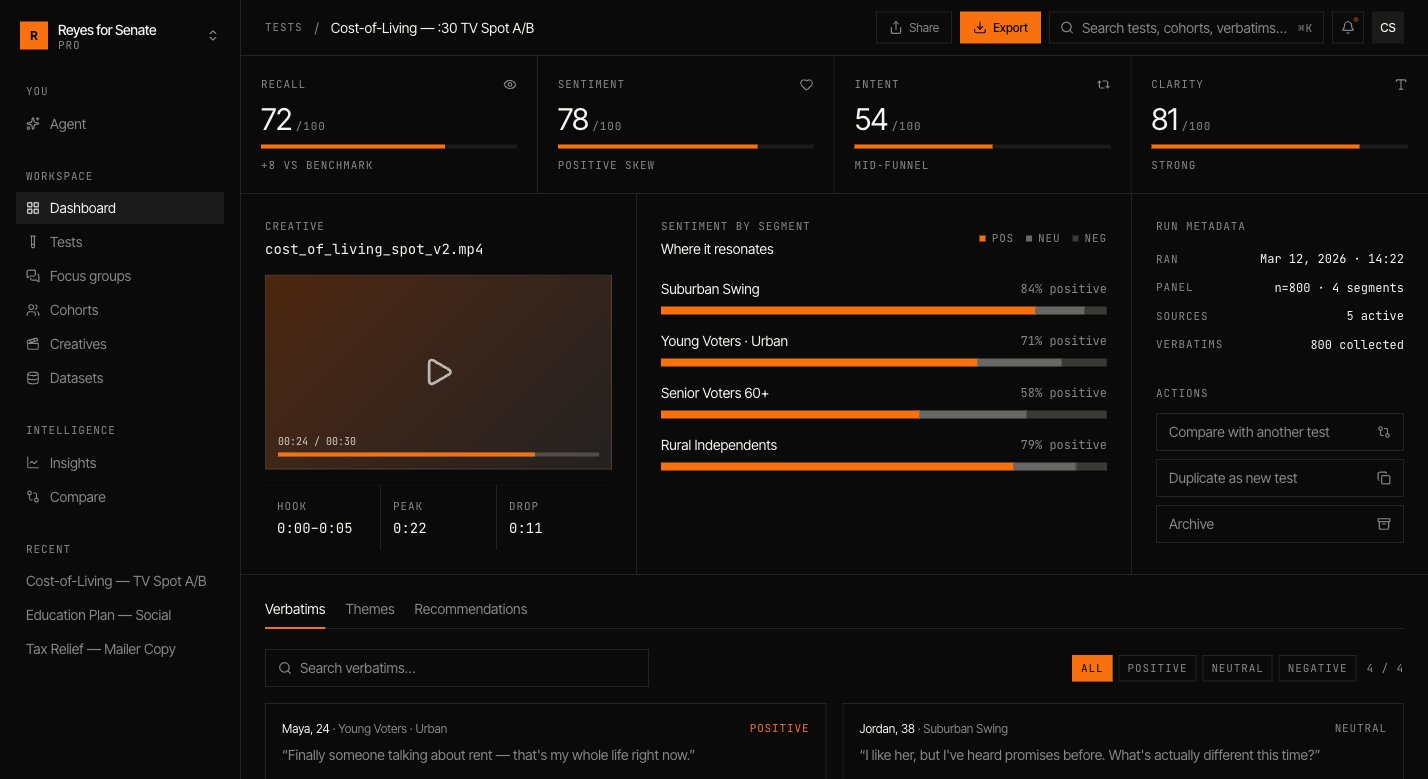 You've run your first simulation. Next, try convening a [focus group](/guides/focus-groups) from the same cohort to hear the room deliberate.
## Where to go next
Understand cohorts, tests, and focus groups.
Ask questions of your simulation in plain language.
Add teammates and set roles.
Find patterns across every test you run.
Need help? Reach out at [support@simulant.tech](mailto:support@simulant.tech).
You've run your first simulation. Next, try convening a [focus group](/guides/focus-groups) from the same cohort to hear the room deliberate.
## Where to go next
Understand cohorts, tests, and focus groups.
Ask questions of your simulation in plain language.
Add teammates and set roles.
Find patterns across every test you run.
Need help? Reach out at [support@simulant.tech](mailto:support@simulant.tech).