> ## Documentation Index
> Fetch the complete documentation index at: https://docs.simulant.tech/llms.txt
> Use this file to discover all available pages before exploring further.
# Run a test
> Test creative and messaging at population scale — set up variants, audience, context, metrics, and questions, then read the results.
A **test** runs a structured study across a whole cohort. Use it to pre-test creative, compare messages, or rehearse a launch — and get both the numbers and the reasoning behind them.
 ## Build a test
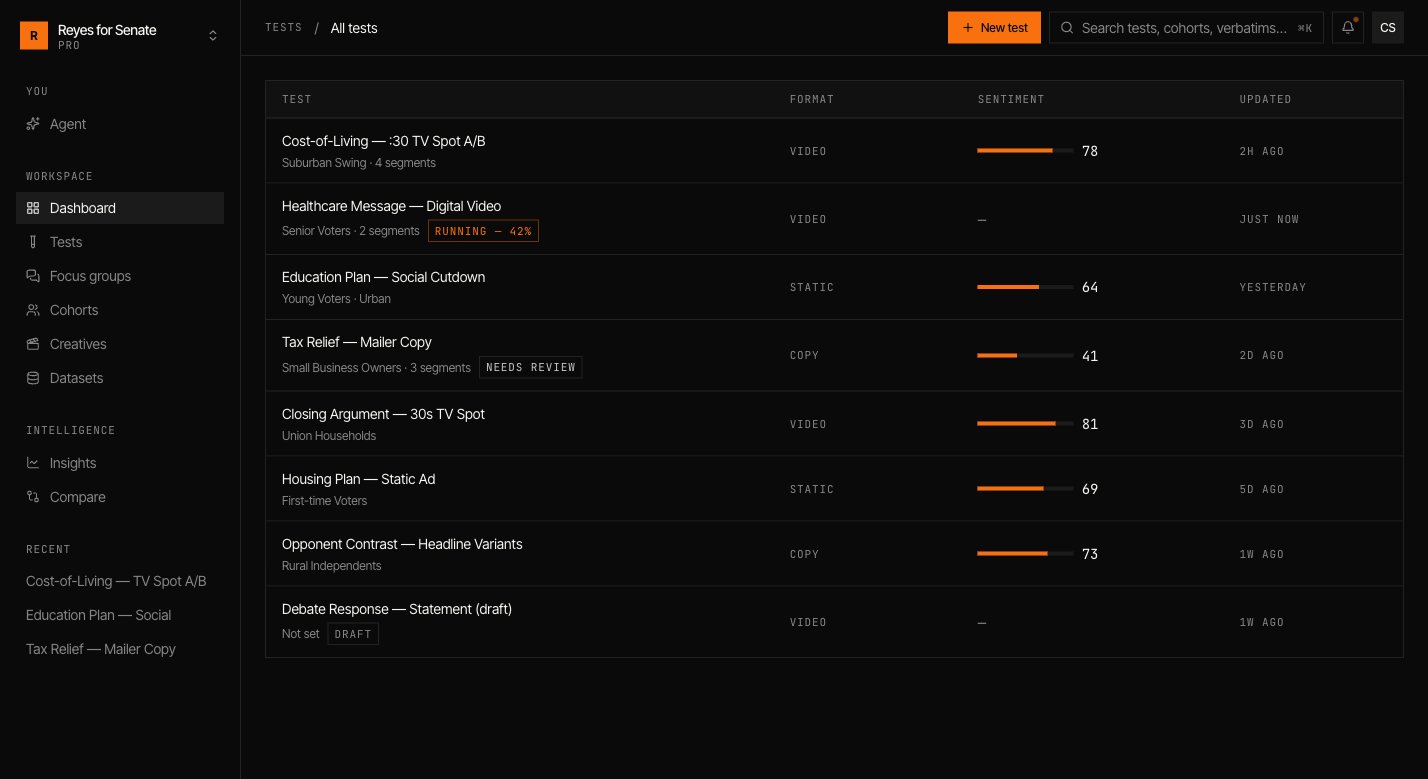
Go to **Tests → New test**. The builder is organized into sections; work down the form and use the live panel to preview your setup.
## Build a test
Go to **Tests → New test**. The builder is organized into sections; work down the form and use the live panel to preview your setup.
 ### Identity
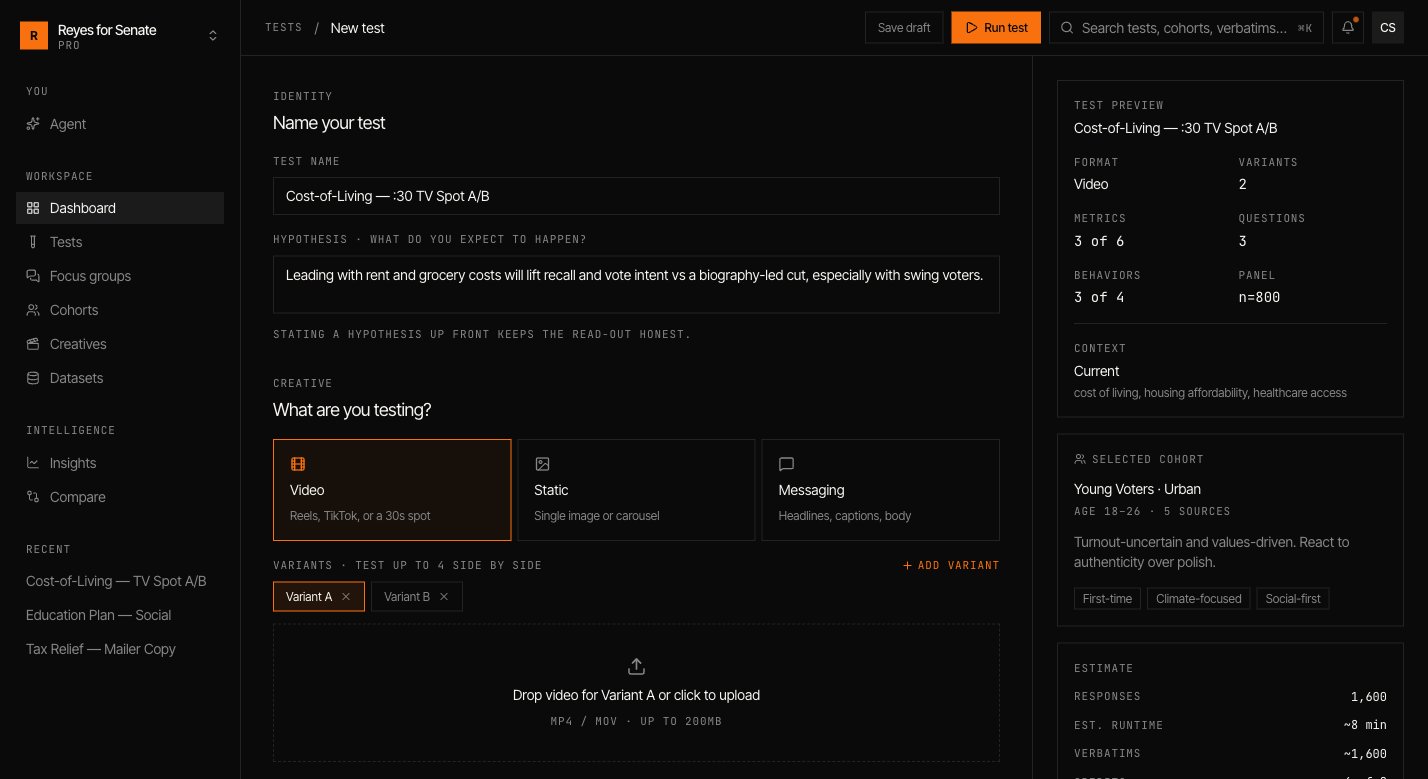
Name the test and state a **hypothesis** — what you expect to happen and why. Stating it up front keeps the read-out honest and gives you something to check the result against.
### Creative
Choose the format:
* **Video** — react to a video cut.
* **Image** — react to a static asset.
* **Messaging** — react to copy you type or upload.
Add **variants** to compare options side by side — up to four, labelled A through D. Attach a creative or message to each. See [Creatives](/guides/creatives).
### Audience
Pick the **cohort** the test runs against, or create a new one inline. Every variant is shown to the same audience, so differences in the result come from the creative, not the crowd. See [Build a cohort](/guides/cohorts).
### Context
Set the real-world environment the population is reacting within:
* **Current** — today's prevailing issues, mood, and events.
* **Neutral** — strip out context for a clean baseline.
* **Custom** — specify the **issues**, **mood**, **events**, and **competitive** pressure yourself.
Context is saved with the test so a run can be reconstructed and validated later.
### Metrics
Select the quantitative measures you want scored, such as **Recall**, **Sentiment**, and **Purchase intent**. Each is reported out of 100 and can be cut by segment.
### Questions
Add the questions each persona answers. Question types include:
* **Open-ended** — free-text responses that become verbatims.
* **Rating 1–5** — a numeric scale.
* **Multiple choice** — fixed options you define.
Drag to reorder questions. A good test mixes a few open-ended prompts with structured ratings.
### Panel and behavior
Tune how the run executes:
* **Sample size** — how many personas to draw from the cohort (capped at the cohort's `n`), or **Max**.
* **Randomize** — vary the order variants are shown to reduce order bias.
* **Attention checks** — include checks that keep responses honest.
* **Agent behavior** — toggles such as allowing **refusals**, requiring **grounded** answers, capturing **verbatims**, and probing with **adversarial** follow-ups.
## Run it
Click **Run test**. Simulant questions the population and assembles the results; you'll be notified when the run finishes. You can also **Save draft** to come back later.
Run time scales with sample size, number of variants, and question count. Larger panels take longer but tighten the confidence of the quantitative measures.
## Read the results
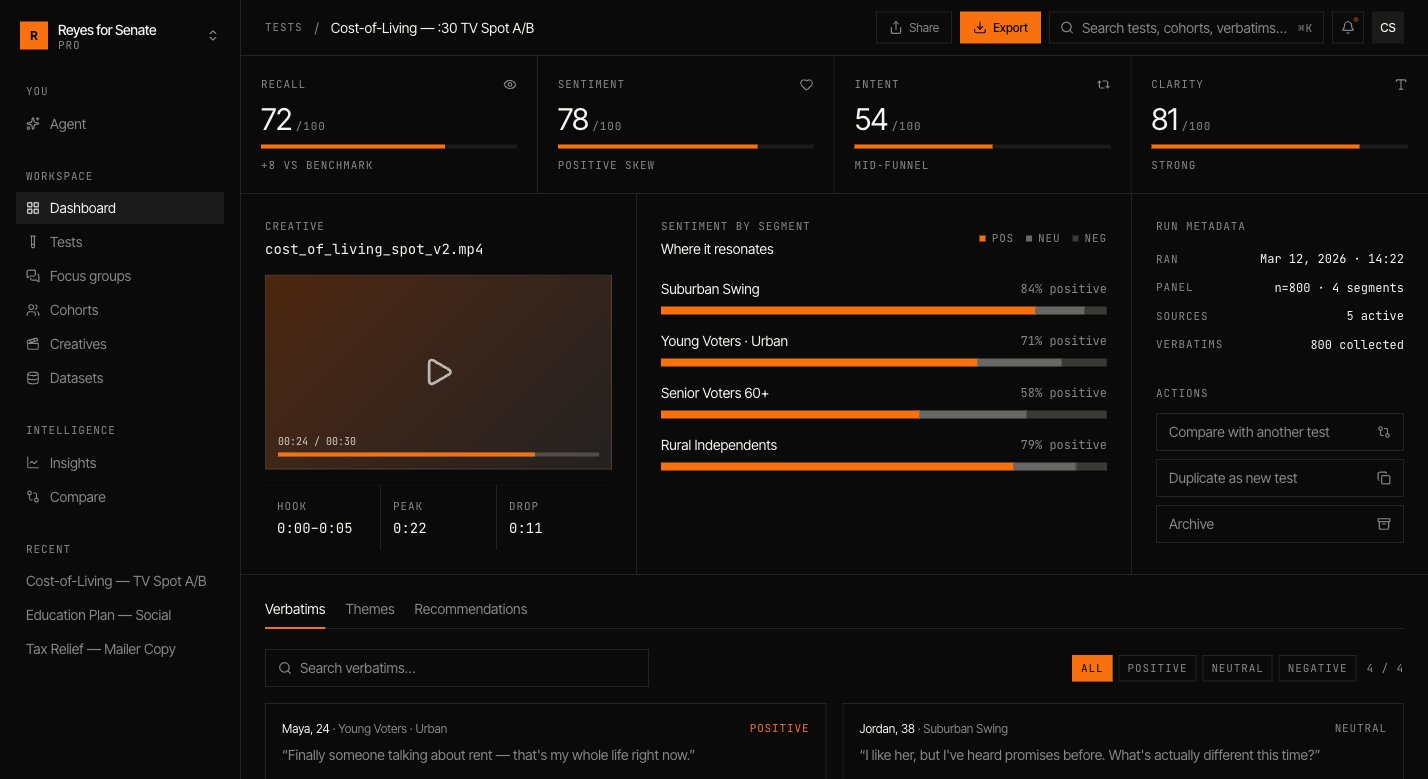
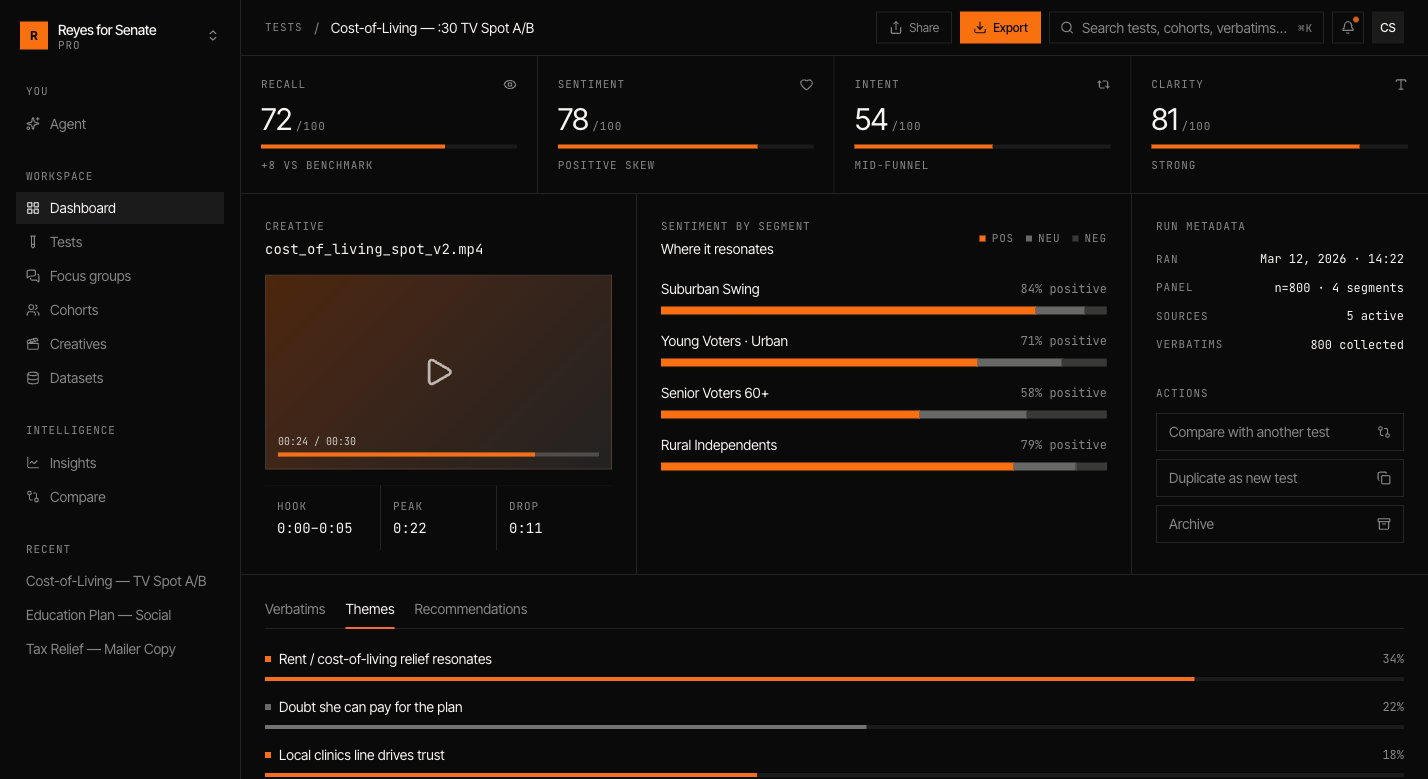
Open a finished test to see:
* **Headline metrics** — recall, sentiment, intent, and clarity, each scored out of 100 against a benchmark.
* **Sentiment by segment** — where the creative resonates and where it falls flat, split positive / neutral / negative.
* **Verbatims** — what individual personas said, filterable by tone. Read the reasoning, not just the score.
* **Themes** — verbatims clustered into the patterns that recur across the panel.
* **Recommendations** — the actions the result points to.
### Identity
Name the test and state a **hypothesis** — what you expect to happen and why. Stating it up front keeps the read-out honest and gives you something to check the result against.
### Creative
Choose the format:
* **Video** — react to a video cut.
* **Image** — react to a static asset.
* **Messaging** — react to copy you type or upload.
Add **variants** to compare options side by side — up to four, labelled A through D. Attach a creative or message to each. See [Creatives](/guides/creatives).
### Audience
Pick the **cohort** the test runs against, or create a new one inline. Every variant is shown to the same audience, so differences in the result come from the creative, not the crowd. See [Build a cohort](/guides/cohorts).
### Context
Set the real-world environment the population is reacting within:
* **Current** — today's prevailing issues, mood, and events.
* **Neutral** — strip out context for a clean baseline.
* **Custom** — specify the **issues**, **mood**, **events**, and **competitive** pressure yourself.
Context is saved with the test so a run can be reconstructed and validated later.
### Metrics
Select the quantitative measures you want scored, such as **Recall**, **Sentiment**, and **Purchase intent**. Each is reported out of 100 and can be cut by segment.
### Questions
Add the questions each persona answers. Question types include:
* **Open-ended** — free-text responses that become verbatims.
* **Rating 1–5** — a numeric scale.
* **Multiple choice** — fixed options you define.
Drag to reorder questions. A good test mixes a few open-ended prompts with structured ratings.
### Panel and behavior
Tune how the run executes:
* **Sample size** — how many personas to draw from the cohort (capped at the cohort's `n`), or **Max**.
* **Randomize** — vary the order variants are shown to reduce order bias.
* **Attention checks** — include checks that keep responses honest.
* **Agent behavior** — toggles such as allowing **refusals**, requiring **grounded** answers, capturing **verbatims**, and probing with **adversarial** follow-ups.
## Run it
Click **Run test**. Simulant questions the population and assembles the results; you'll be notified when the run finishes. You can also **Save draft** to come back later.
Run time scales with sample size, number of variants, and question count. Larger panels take longer but tighten the confidence of the quantitative measures.
## Read the results
Open a finished test to see:
* **Headline metrics** — recall, sentiment, intent, and clarity, each scored out of 100 against a benchmark.
* **Sentiment by segment** — where the creative resonates and where it falls flat, split positive / neutral / negative.
* **Verbatims** — what individual personas said, filterable by tone. Read the reasoning, not just the score.
* **Themes** — verbatims clustered into the patterns that recur across the panel.
* **Recommendations** — the actions the result points to.
 Use **Share** to bring in teammates or **Export** to take the results into a deck or report.
Comparing variants? Look past the headline number to the segment cuts and themes — a variant that wins overall can still lose the audience you actually care about.
## Next
Hear the same cohort deliberate in conversation.
Find patterns across every test you run.
Use **Share** to bring in teammates or **Export** to take the results into a deck or report.
Comparing variants? Look past the headline number to the segment cuts and themes — a variant that wins overall can still lose the audience you actually care about.
## Next
Hear the same cohort deliberate in conversation.
Find patterns across every test you run.