> ## Documentation Index
> Fetch the complete documentation index at: https://docs.simulant.tech/llms.txt
> Use this file to discover all available pages before exploring further.
# Datasets
> Add, connect, and manage the data that grounds your simulated population.
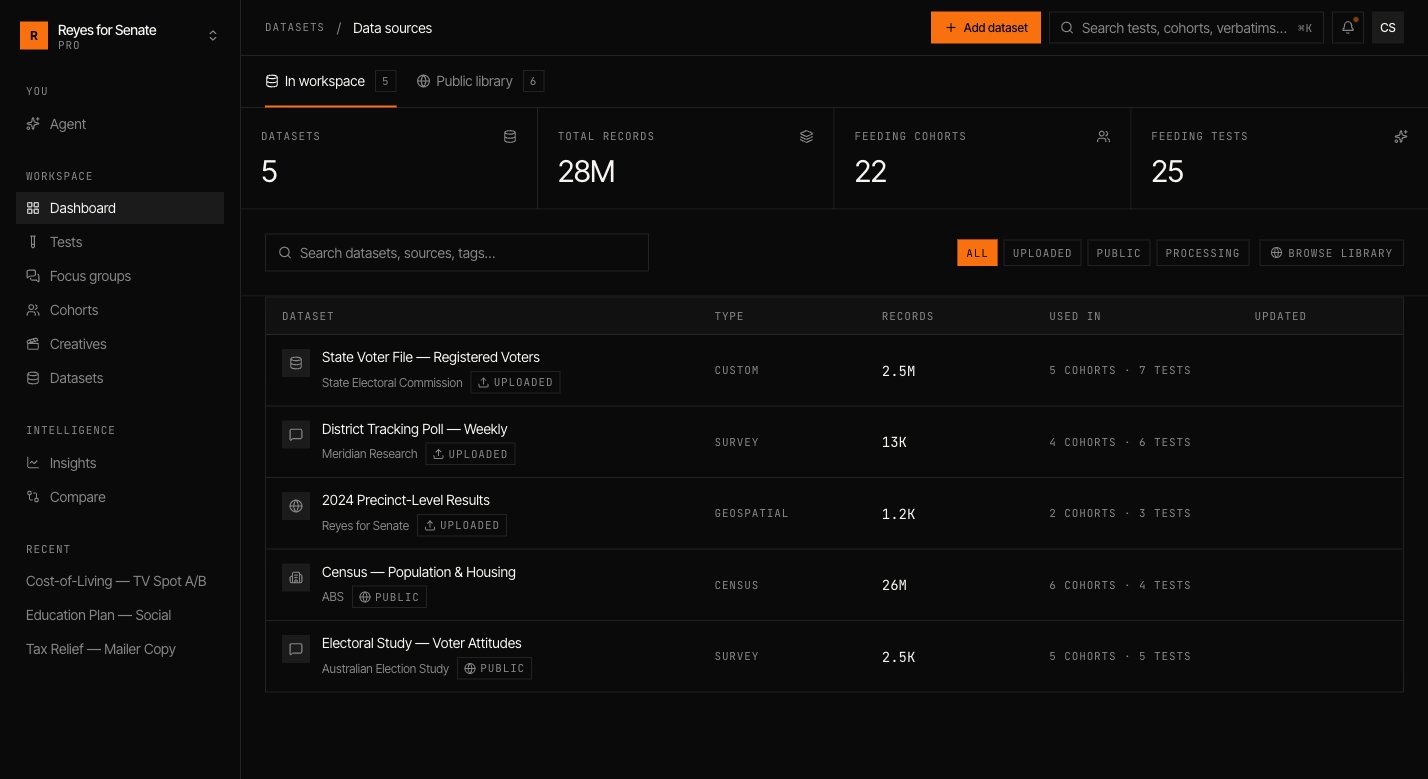
A **dataset** is a source of real-world signal that grounds the personas in your workspace. Simulant ships with a public library so you can start immediately, and you can add your own data to sharpen the population around your market.
 ## The public library
Every workspace can draw on Simulant's **public library** — a curated set of official, high-quality datasets covering population, attitudes, and behavior. Browse it under **Datasets → Add dataset → Public library**, then add a dataset to your workspace to make it available to cohorts. See [How grounding works](/data/grounding) for what's included.
## Add your own data
Go to **Datasets → Add dataset** and choose a source:
Drop in a file to import — for example, a brand tracker or a survey export. Simulant reads the schema so you can confirm the fields and preview sample rows.
Point Simulant at an API endpoint and provide an authorization token to pull records from an external system.
Pick a dataset from the public library to add to your workspace.
Give it a name (for example, `Q2 Brand Tracker`), a description of what it contains and how it should be used, a category, and tags.
Choose who in the workspace can use it.
Confirm, and Simulant imports and prepares the data.
## Schema, versions, and preview
Open any dataset to inspect its **schema** (the fields and their types), browse **sample rows**, and see its details. Datasets are **versioned** — when you re-import or update a source, Simulant keeps the version history so results stay reproducible and you can see exactly what a run was built on.
## Using datasets in cohorts
Datasets don't shape a study on their own — you select which ones a [cohort](/guides/cohorts) is built from under **Source data**. Toggling a source on or off changes the signal behind that cohort's personas.
Your uploaded and connected datasets stay private to your workspace. Public library datasets are shared grounding available to everyone.
Understand how datasets become a population.
## The public library
Every workspace can draw on Simulant's **public library** — a curated set of official, high-quality datasets covering population, attitudes, and behavior. Browse it under **Datasets → Add dataset → Public library**, then add a dataset to your workspace to make it available to cohorts. See [How grounding works](/data/grounding) for what's included.
## Add your own data
Go to **Datasets → Add dataset** and choose a source:
Drop in a file to import — for example, a brand tracker or a survey export. Simulant reads the schema so you can confirm the fields and preview sample rows.
Point Simulant at an API endpoint and provide an authorization token to pull records from an external system.
Pick a dataset from the public library to add to your workspace.
Give it a name (for example, `Q2 Brand Tracker`), a description of what it contains and how it should be used, a category, and tags.
Choose who in the workspace can use it.
Confirm, and Simulant imports and prepares the data.
## Schema, versions, and preview
Open any dataset to inspect its **schema** (the fields and their types), browse **sample rows**, and see its details. Datasets are **versioned** — when you re-import or update a source, Simulant keeps the version history so results stay reproducible and you can see exactly what a run was built on.
## Using datasets in cohorts
Datasets don't shape a study on their own — you select which ones a [cohort](/guides/cohorts) is built from under **Source data**. Toggling a source on or off changes the signal behind that cohort's personas.
Your uploaded and connected datasets stay private to your workspace. Public library datasets are shared grounding available to everyone.
Understand how datasets become a population.